


RIGDOCKS
Setting up Unreal Engine 5
Before you start
1Check your PC
Unreal Engine 5 is software for making games and video, and it puts a very heavy load on your computer. First, check that your PC is up to it.
Item Recommended (Windows) Recommended (Mac) OS Windows 11 (64-bit) Latest macOS CPU 8 cores or more M1 or M2 Memory 32GB or more 32GB or more Graphics card 8GB or more of memory
DirectX 11 or DirectX 12 supportMetal 1.2 support Storage SSD
500GB or more freeSSD
500GB or more freeHow to check
- Hold down the
Windows keyand pressR. - A small window appears. Type
dxdiagand clickOK. - The "System" tab shows the CPU and memory, and the "Display" tab shows the graphics card.
For the detailed requirements, see the hardware and software specifications.
Leave plenty of free space. UE5 itself takes around 40GB, and your projects (your work data) add to that.
- Hold down the
Installing Visual Studio
Visual Studio is the software for writing programs (in the C++ programming language) and turning them into a form Unreal Engine 5 can run. Use the free "Community" edition from Microsoft.
Unreal Engine 5 uses this software to build parts of itself, so install it even if you only use Blueprints.
Download from: https://visualstudio.microsoft.com/downloads/
1Open the page above and click "Free download" under "Community".

2Double-click the downloaded
VisualStudioSetup.exe.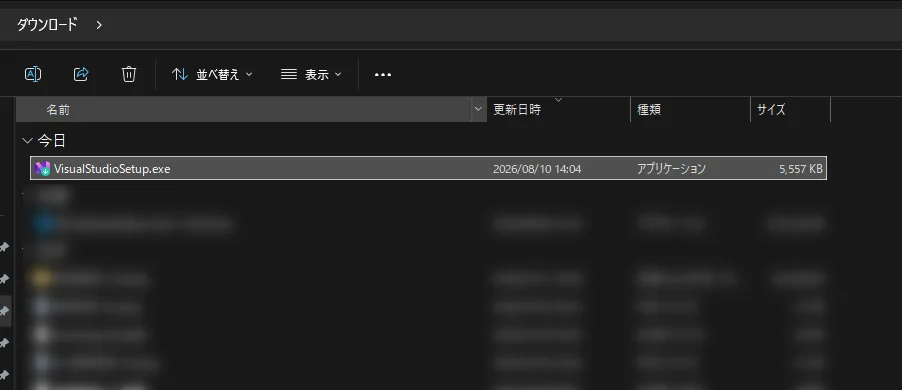
3Click "Continue". The installer starts getting ready (this takes a few minutes).
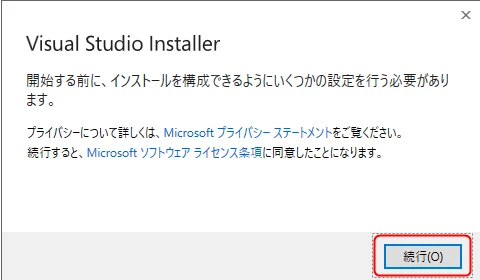
4Make sure the "Workloads" tab is selected at the top, check the two items below and click "Install".
- Game development with C++
- .NET desktop development
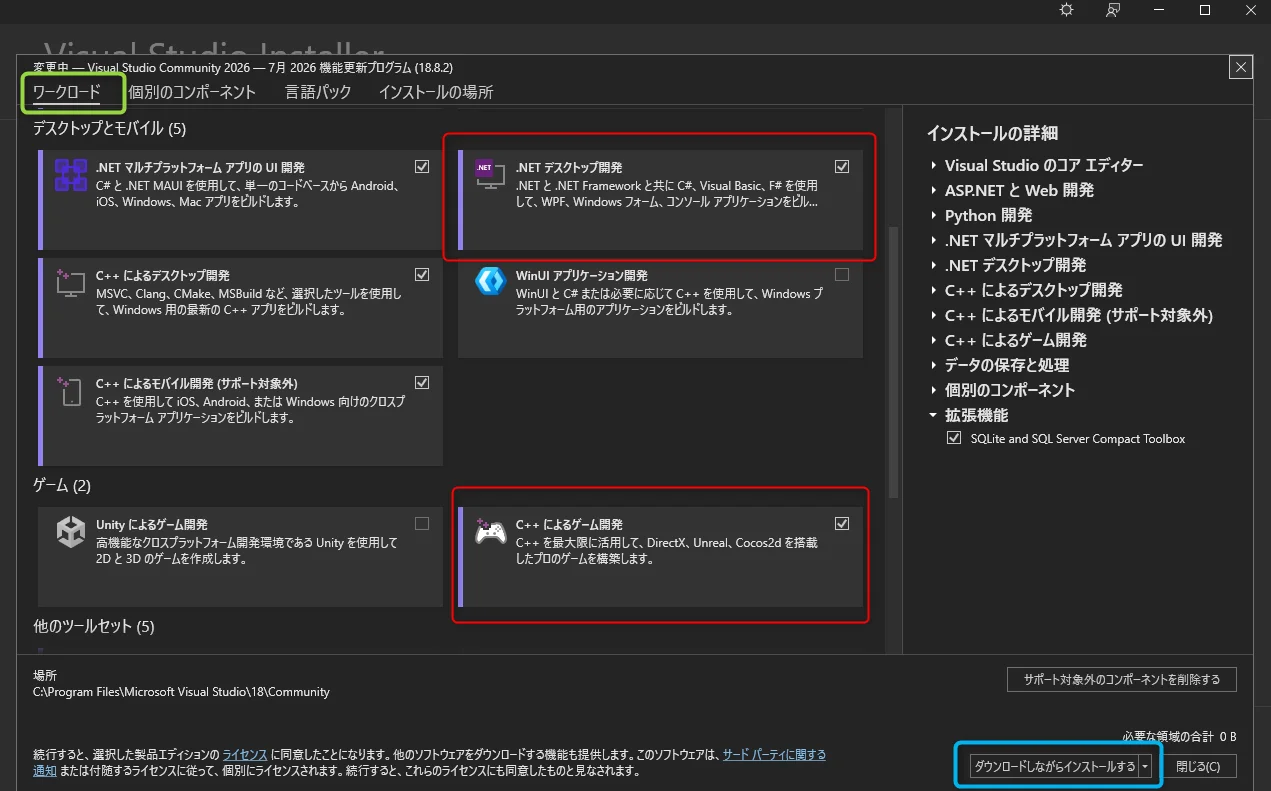
5The download and installation start. If you are asked to restart when it finishes, restart your PC.
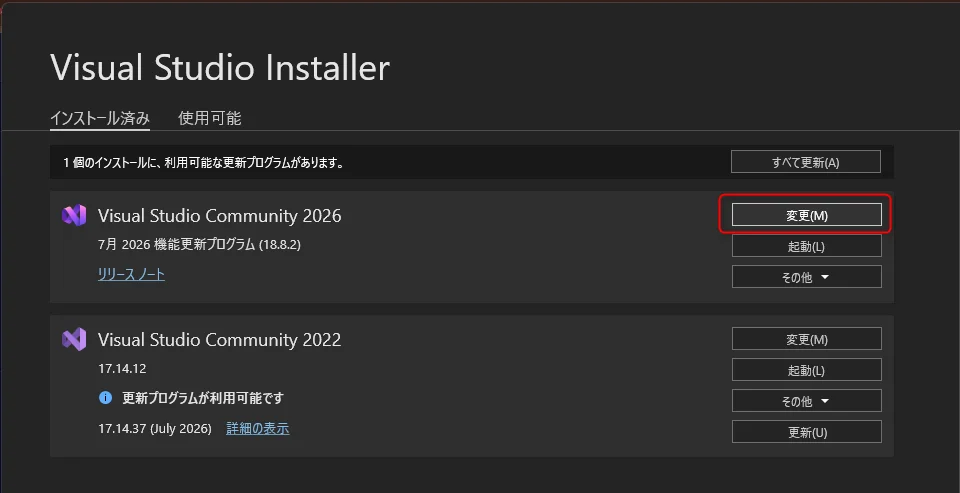
You can change the items checked in step 4 later. Open "Visual Studio Installer" from the Windows Start menu and click "Modify" to get the same screen.
Installing the Epic Games Launcher
The Epic Games Launcher is your "front desk" to Epic Games, the company behind Unreal Engine 5. You download and update Unreal Engine 5 and get assets (from the Marketplace) all from here.
You do not download Unreal Engine 5 directly. Install this launcher first, then install Unreal Engine 5 from inside it.
Download from: https://www.unrealengine.com/download
1Create an Epic Games account
If you do not have an account, create one from "Sign in" > "Create account".

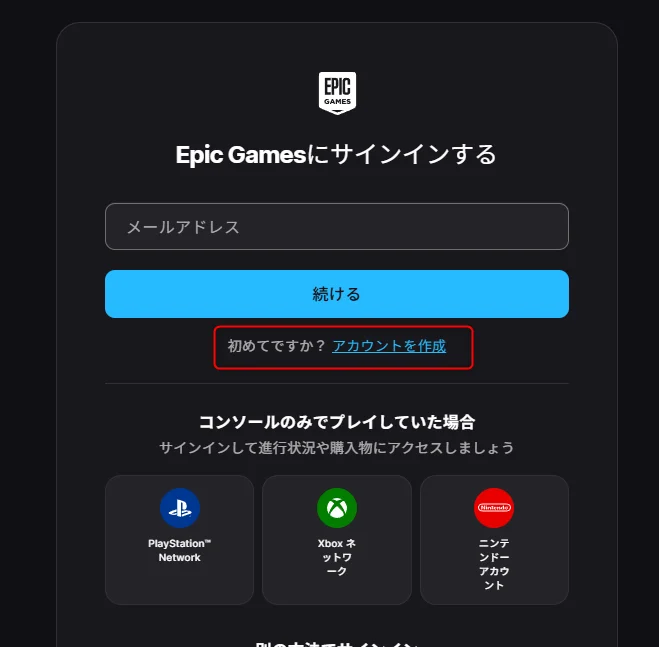
A confirmation email is sent to the address you registered. Click the link in it to verify your account.
For details, see the Epic Games support page.
2Click "Download" to download the installer.

3Double-click the downloaded
EpicInstaller-xx.x.x.msi.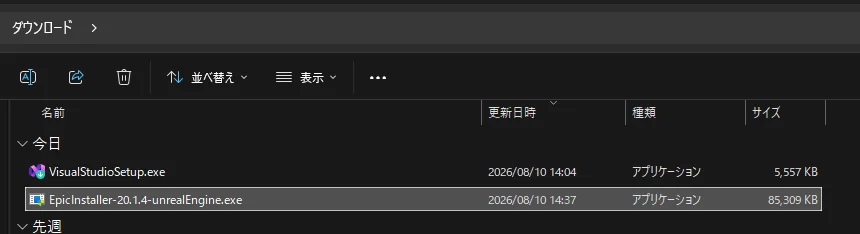
4Click "Install". When the installation finishes, the Epic Games Launcher starts automatically.
5Sign in with the account you created.

6You are done when you see a screen like the one below.

Installing Unreal Engine 5
This is the engine itself, for making games and video. Building 3D worlds, moving characters and playing to test how things work all happen inside it.
1In the Epic Games Launcher, select "Unreal Engine" in the left menu.
2Select the "Library" tab at the top.

3Click the "+" (plus) button to the right of "Engine Versions".
A new box appears showing a version number (for example, 5.6.1).
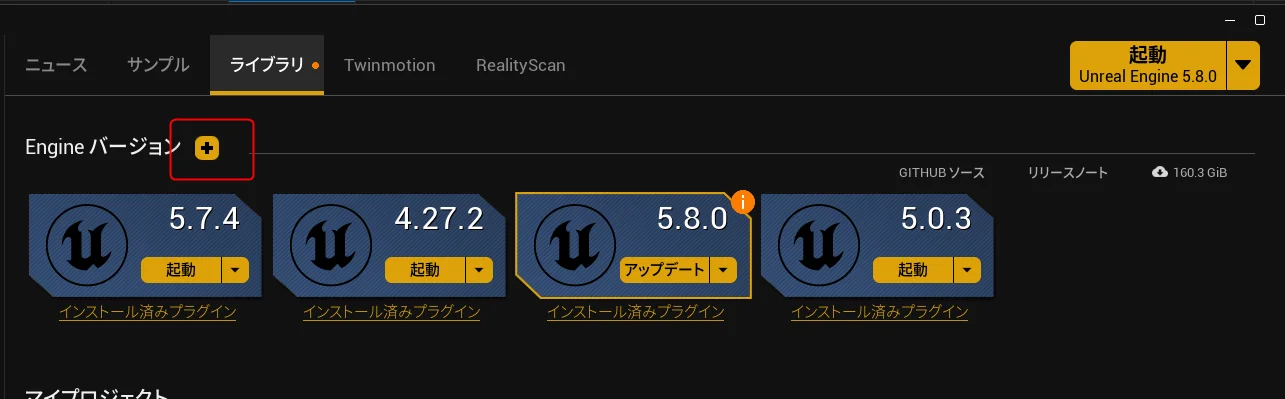
Click the number in the box to choose another version.
If this is your first time, choose the latest official release.4Click the down-arrow icon in the box.
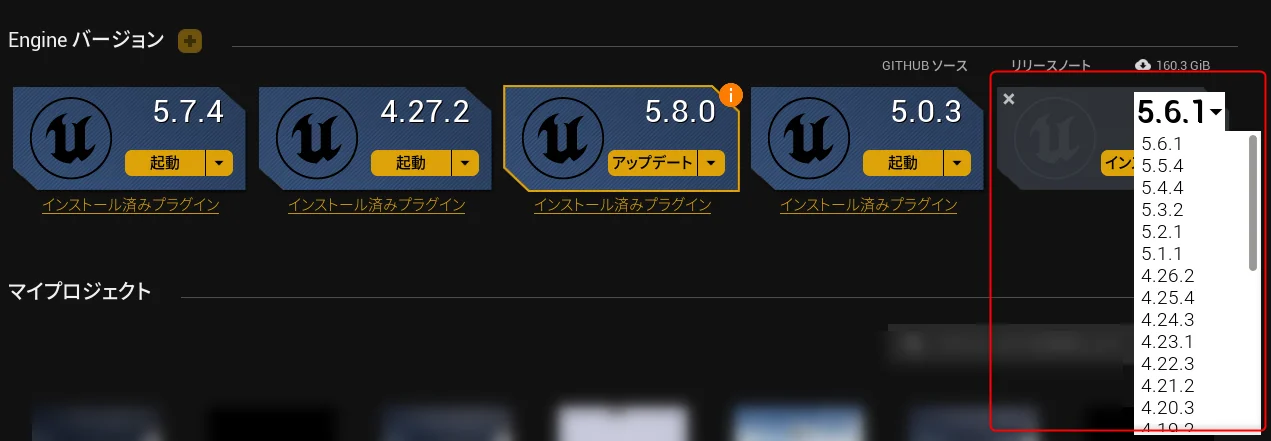
5You are asked where to install it. You can change the location here.
Example: E:\UE\UE_5.6

Choose a drive with plenty of free space. You need about 40 to 60GB.
6Click "Options" to choose what to install. If this is your first time, set it up as follows.
Item Setting Core Components (the engine) ☑ Required (cannot be unchecked) Starter Content (sample assets) ☑ Install Templates and Feature Packs ☑ Install Engine Source (the engine source code) ☐ Can be unchecked Editor symbols for debugging (for investigating bugs) ☐ Uncheck (over 20GB, not needed when starting out) Platforms (Android / iOS / Linux, etc.) ☐ Only the ones you use. You can uncheck them all to start 7Click "Apply", then "Install".
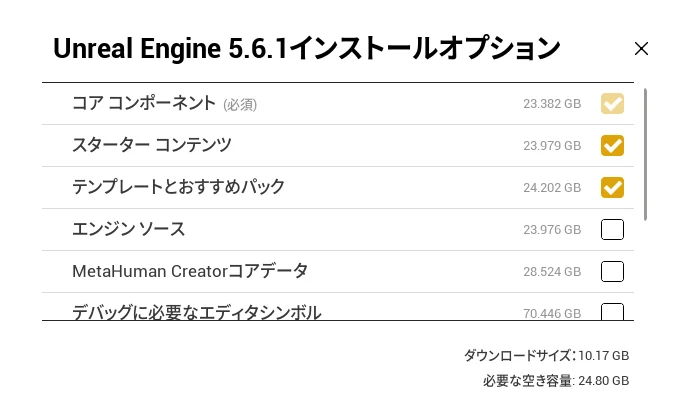
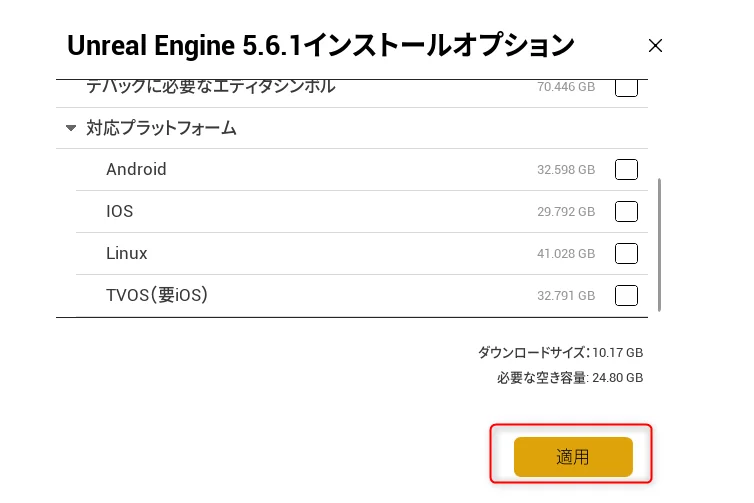
The download and installation start. This can take 1 to 3 hours, so leave your PC on. You can pause and resume at any time, and it keeps going even if you close the window, as long as the launcher is running.
8When the installation finishes, the button in the box changes to "Launch".
In the image, version 5.7.4 is installed.
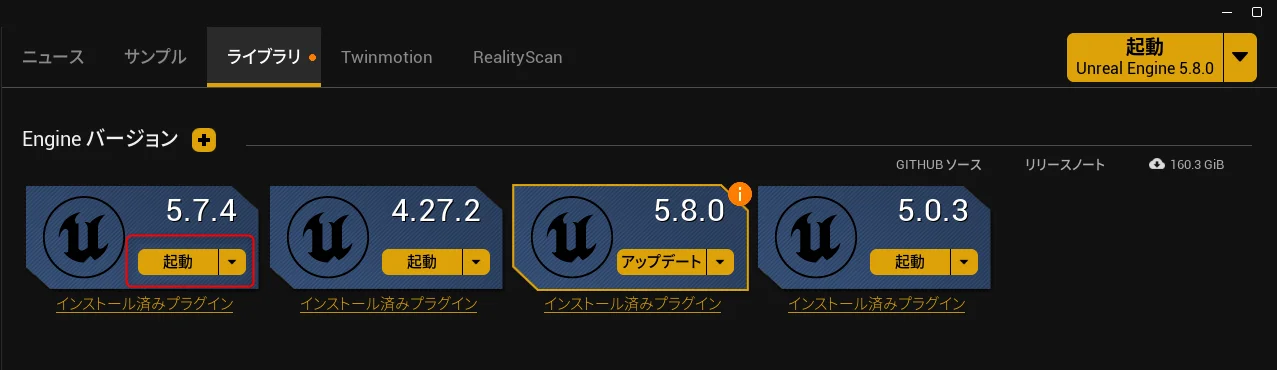
When developing as a team, make sure everyone uses the same version. With different versions, you may not be able to open each other’s files.
Creating a project
1Click "Launch" for the Unreal Engine 5 you installed.
The images show creating a project with version 5.7.4.
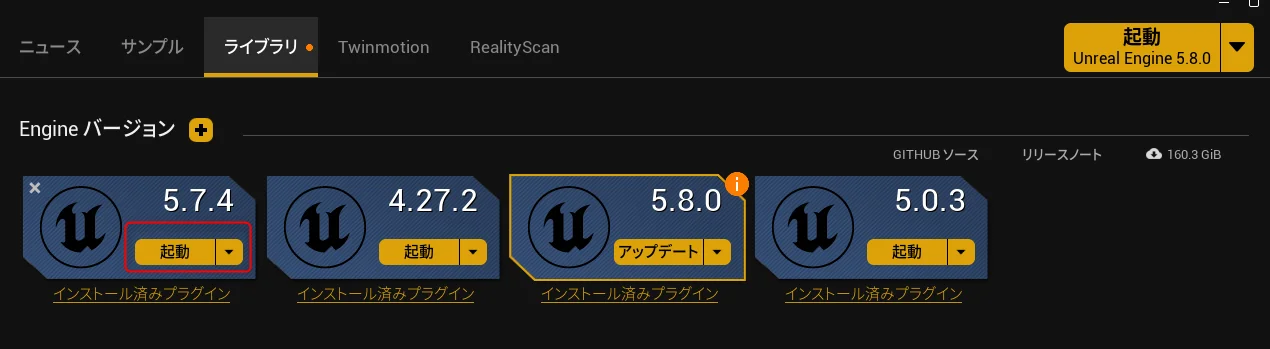
The first launch can take 5 to 10 minutes. Wait even if nothing seems to happen, and do not force it to close.
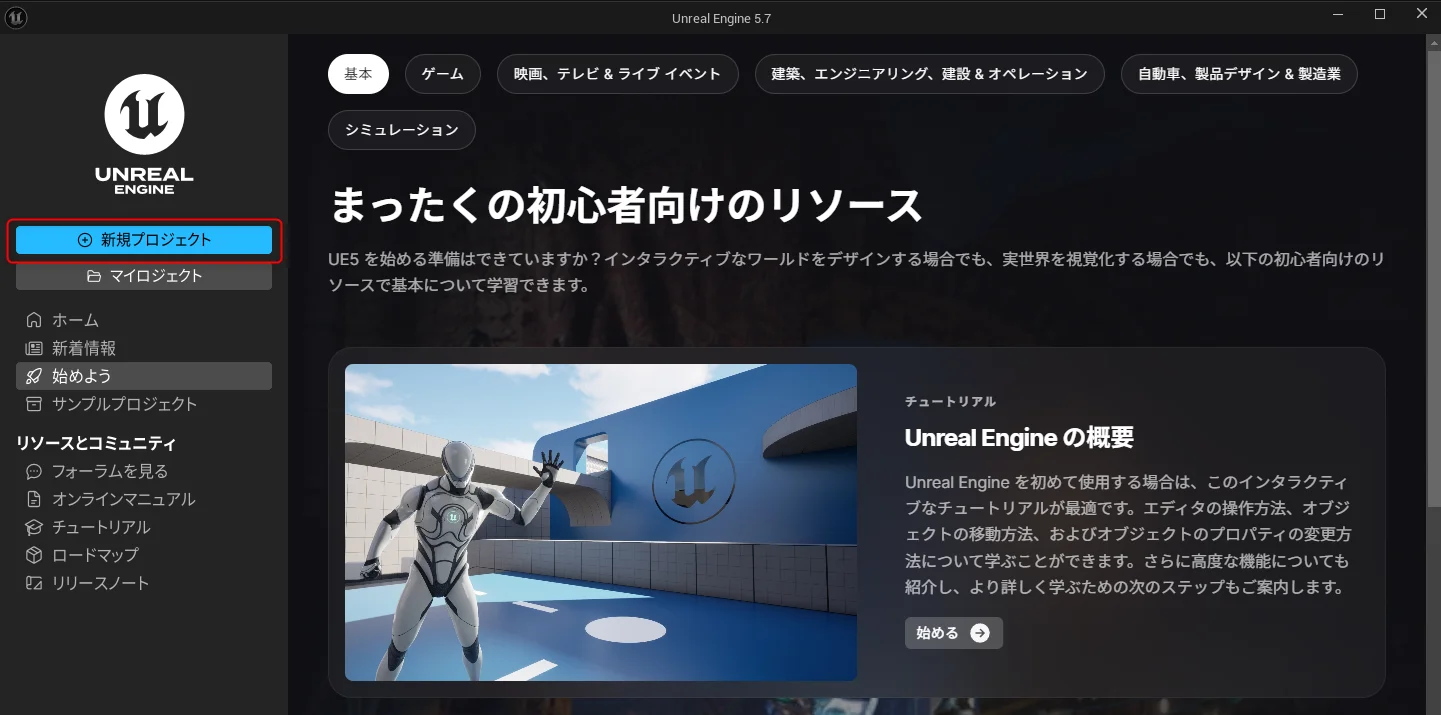
2Select "New Project".
3Select "Games" on the left, then "Blank" (an empty template) in the middle.
4Set the options on the right as follows and click "Create".
Item Setting Blueprint / C++ C++ Target platform Desktop Quality preset Scalable Project location D:\unreal (any location) Project name MyFirstProject (letters and numbers only; any name) 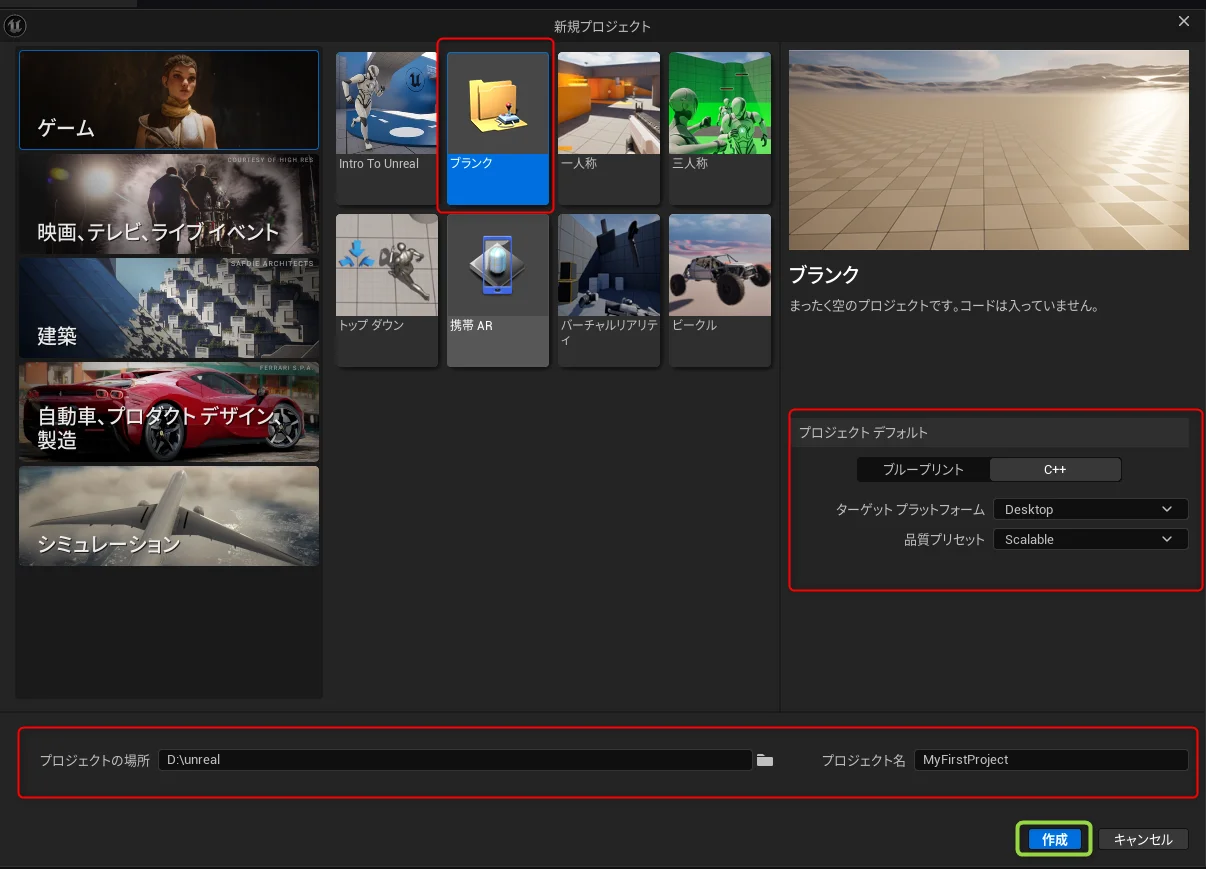
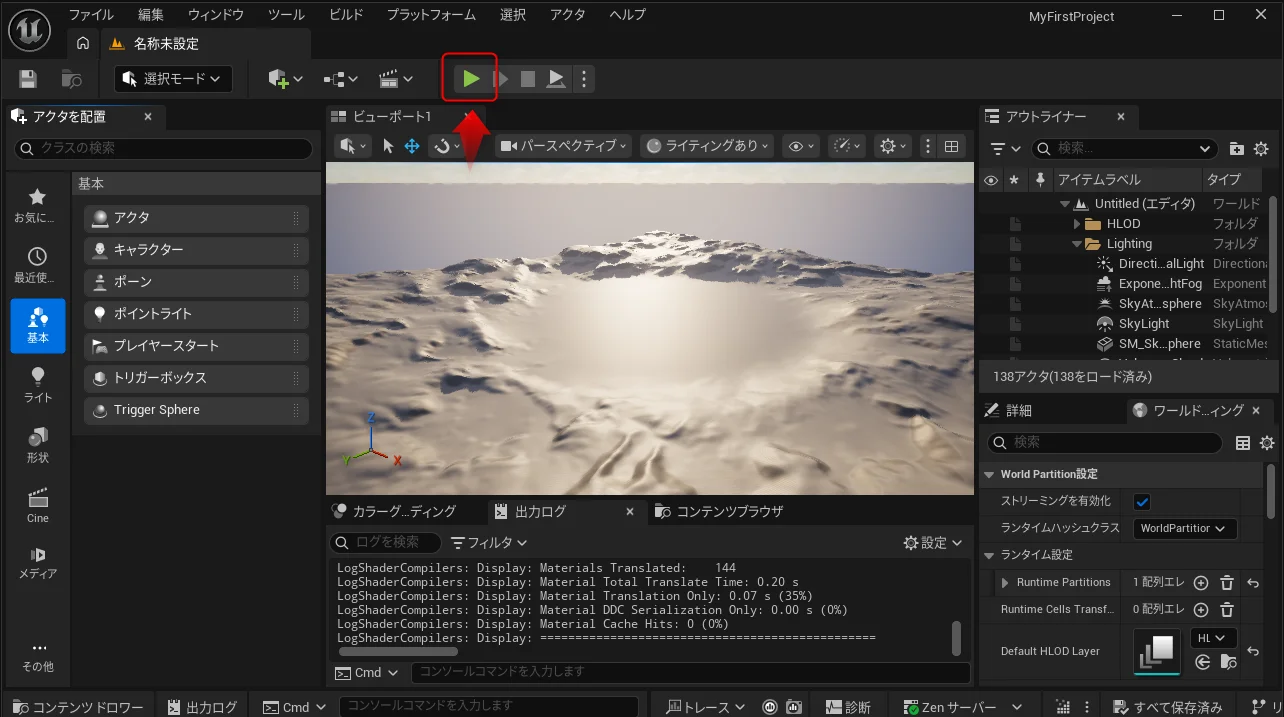
5After a few minutes, the 3D view appears.
Click the ▶ (Play) button at the top of the screen to start the game.
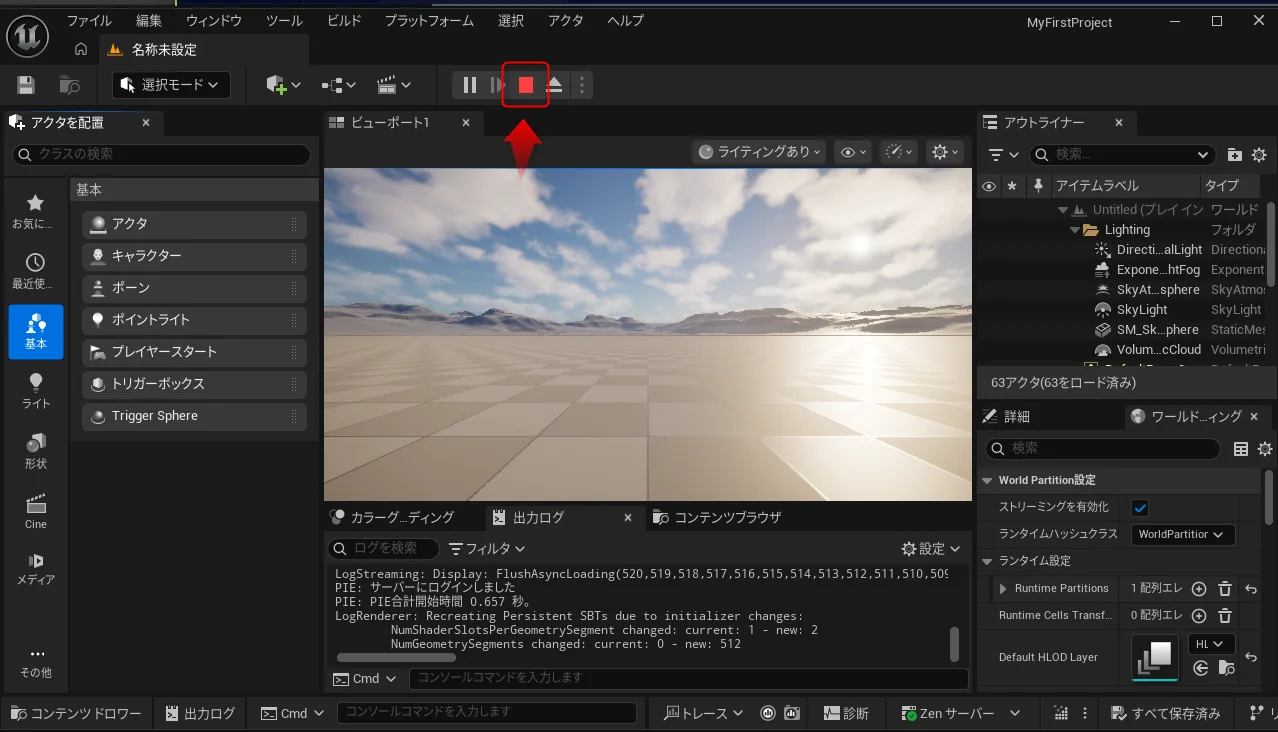
Click the ■ (Stop) button or press Esc to end the game.
Further reading
Opening a project
RIGDRED hosts the projects we develop.
The same page also explains how to open them.